How to Budget AWS On-Demand Instances
UK SMB guide to forecast, monitor and cut AWS On‑Demand EC2 costs using budgets, alerts, rightsizing, scheduling and smarter purchase options.
AWS On-Demand Instances offer flexibility but can lead to unexpected costs if not managed properly. For UK small and medium-sized businesses (SMBs), these costs can be influenced by factors like idle resources, hidden charges, and even GBP/USD currency fluctuations. This guide explains how to budget effectively, reduce waste, and optimise spending on AWS On-Demand Instances.
Key Points:
- Main Cost Drivers: EC2 compute costs dominate (35–50%), but hidden fees like EBS storage, data transfer, and NAT Gateways can inflate bills.
- Budgeting Tools: Use AWS Cost Explorer, Budgets, and Pricing Calculator to track and forecast expenses.
- Cost Control: Set alerts at 80%, 100%, and forecasted budget breaches. Separate budgets by workload or environment.
- Optimisation Tips: Rightsize instances, schedule non-critical workloads, and mix On-Demand with Reserved or Spot Instances.
- UK Considerations: Align budgets with the April–March fiscal year, and account for currency fluctuations when reporting costs.
How to create your first AWS budget step-by-step | AWS Cost Control: Setup Budgets in 10 Minutes!
Understanding the Cost Drivers of AWS On-Demand Instances
Before you can effectively manage your AWS budget, it's essential to identify what drives your bill. For many organisations, EC2 compute costs dominate, often making up 35–50% of total AWS expenses. But the compute charge itself is just one piece of the puzzle. Let’s break down the factors that influence On-Demand costs and uncover some of the hidden expenses.
How AWS On-Demand Pricing Works
AWS calculates On-Demand Instance pricing based on several variables: the instance family, size, operating system, and region. For example, an m8g.large running Amazon Linux in eu-west-1 is cheaper than the same instance running Windows in eu-west-2.
Operating system licensing is a major cost driver. It can increase the base price by 30–50%, with SQL Server often doubling or even tripling costs. Billing for Linux, Windows, and SQL Server instances is per second (with a 60-second minimum), while RHEL and SUSE are charged hourly.
Regional pricing also fluctuates, with costs varying by 15–25% depending on where workloads are hosted. While us-east-1 is usually the least expensive region, UK organisations often opt for European regions like eu-west-1 due to compliance needs and lower latency.
Hidden Costs to Watch For
While compute charges account for 60–70% of an EC2 bill, additional costs from storage, networking, and monitoring can quietly inflate your expenses. Here are some common hidden charges:
- EBS Storage: Charges apply to the full size of your EBS volumes, and snapshots can accumulate unnoticed over time.
- Data Transfer: While inbound data to AWS is free, outbound data to the internet costs roughly £0.07 per GB after the first 100 GB each month. Transfers between Availability Zones (AZs) are billed at approximately £0.01 per GB in both directions.
- NAT Gateway Fees: NAT Gateways incur hourly charges (around £0.04 per hour, or £26 monthly) and per-GB data processing fees. For high-traffic environments, these fees can account for 5–10% of your EC2 spending.
- Elastic IPs: Any unused Elastic IP not tied to a running instance costs about £0.004 per hour (approximately £2.90 per month). Forgotten IPs from old projects can quietly add up.
"Stopping an instance (not terminating) halts compute charges but continues billing for attached EBS storage, allocated Elastic IPs, and any snapshots." - Ahmad, Cloud Specialist
One effective way to cut storage costs is by switching from gp2 to gp3 EBS volumes. This change reduces costs by roughly 20% while maintaining the same baseline performance, with no impact on your applications.
Understanding these hidden charges is critical before diving into AWS tools to monitor and manage costs.
Using AWS Tools to Track Costs
AWS offers several tools to help you keep tabs on your spending:
- AWS Cost Explorer: This tool breaks down your expenses by service, region, and instance type. Cost Allocation Tags are particularly useful for tracking costs by team, environment, or project.
- AWS Compute Optimizer: It analyses your historical usage patterns to identify over-provisioned instances, helping you avoid paying for unused capacity.
- AWS Cost and Usage Report (CUR): For a detailed view, the CUR provides raw billing data at the resource level. It’s invaluable for investigating specific charges, such as NAT Gateway data fees or cross-AZ transfer costs.
For more guidance on managing AWS costs and optimising your setup, particularly for small and medium-sized businesses, check out AWS Optimization Tips, Costs & Best Practices for Small and Medium Sized Businesses.
Building a Baseline Budget for AWS On-Demand Instances
Once you've identified the key cost drivers, the next step is to establish a baseline budget that reflects actual usage. This budget becomes your reference point for monitoring monthly AWS expenses. Instead of relying on guesses, use your existing data and AWS tools to create a realistic baseline. This groundwork is essential for planning budgets tailored to new workloads and specific environments.
Using Historical Data to Set a Budget
Your past spending data is the most reliable place to start. Dive into the last three to six months of On-Demand EC2 costs using AWS Cost Explorer. Filter the data by service (Amazon EC2), region (e.g., eu-west-1), and purchase type (On-Demand). Calculate the average monthly spend for this period, and take note of any unusual spikes to account for seasonal trends or anomalies.
Use the amortised cost view in AWS Budgets to set your baseline. Amortised costs distribute any upfront charges evenly over the usage period, providing a smoother and more predictable spending profile to work with.
"Forecasts are more flexible, which allows for readjustments throughout the year and provides dynamic projections over a period of one, two, or three years." - AWS Well-Architected Framework
If your spending patterns are consistent, consider the auto-adjusting option in AWS Budgets. This feature dynamically adjusts your budget based on recent spending trends, making it a practical choice if you're uncertain about setting a fixed budget figure.
Estimating Costs for Specific Workloads
For workloads without prior billing history, turn to the AWS Pricing Calculator. Input details such as the instance type (e.g., t3.medium), operating system, region, and estimated monthly usage hours to generate a cost estimate in GBP. Be sure to include related costs like EBS storage (type and size), expected data transfer out of the region, and any Elastic IPs you plan to use.
A critical factor to consider is your usage pattern. The Pricing Calculator allows you to model four common patterns:
| Usage Pattern | Description | Use Case |
|---|---|---|
| Constant | Runs continuously with predictable load | Web servers, background services |
| Daily Spike | Peaks once every 24 hours | Overnight batch jobs, morning surges |
| Weekly Spike | Peaks once every 7 days | Weekly reports, scheduled maintenance |
| Monthly Spike | Peaks once every 30 days | Payroll processing, end-of-month tasks |
Matching your workload to the correct pattern ensures a more precise estimate than assuming constant usage across all scenarios.
Once you've estimated individual workload costs, consider separating budgets by environment. This approach helps you identify spending trends more clearly.
Separating Budgets by Workload Type
Combining all costs into a single budget can make it harder to pinpoint specific cost drivers. For example, overspending in a development environment could mask whether your production workloads are staying within budget.
A more effective method is to split budgets by environment using Cost Allocation Tags. Assign tags like Environment: Production or Environment: Dev to your resources, then create separate budgets for each environment in the AWS console. This separation ensures that experimental resources in development don't skew your production budget. It also simplifies troubleshooting if costs suddenly spike.
At this stage, it's also worth reviewing your purchase strategies. Continuous production workloads are ideal candidates for Reserved Instances or Savings Plans, which can reduce costs by up to 72% and 66% respectively compared to On-Demand rates. Meanwhile, workloads that are short-lived or unpredictable may be better suited to On-Demand pricing - or even Spot Instances if interruptions are acceptable. By splitting budgets by workload type, it's easier to identify where these cost-saving strategies can be applied effectively.
Setting Up Budget Controls and Alerts
Once you've established your baseline budget, the next step is to implement alerts to keep spending under control. AWS provides three tools to help manage On-Demand EC2 costs: AWS Budgets, CloudWatch Billing Alarms, and Cost Explorer Anomaly Detection. These tools work together to give you both planned and real-time visibility into your expenses. By combining them, you can maintain proactive control over your cloud spending.
Setting Up AWS Budgets and Alerts
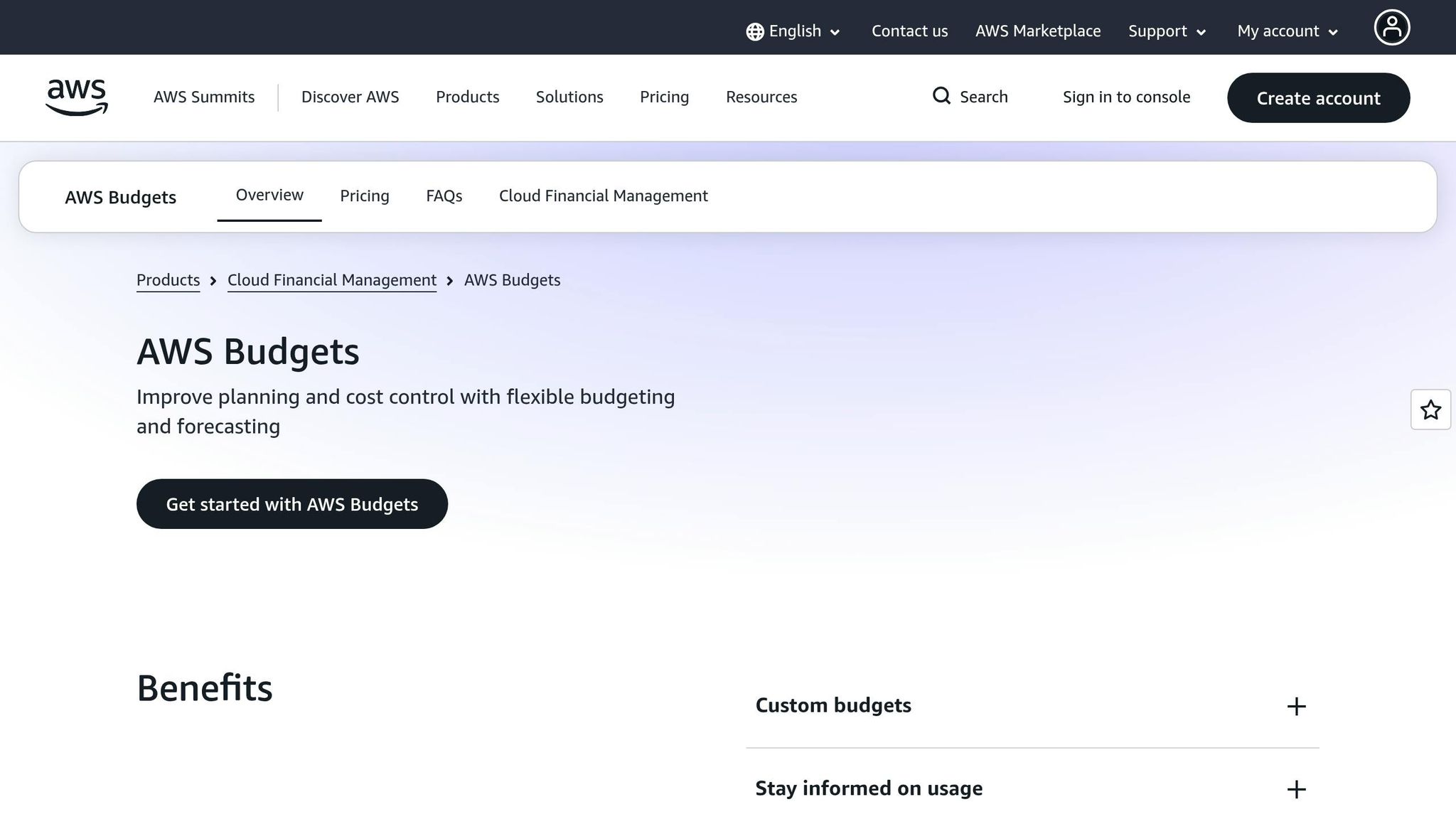
AWS Budgets offers a way to monitor your spending continuously, focusing specifically on On-Demand costs. When setting up a budget, use the "Customise (advanced)" option to filter by service and usage type. This allows you to separate On-Demand costs from Reserved Instances or Savings Plans.
For effective monitoring, create three alert thresholds:
- 80% of your budgeted amount: Acts as an early warning.
- 100% of your budgeted amount: Indicates you've hit your limit.
- Forecasted breach alert: Triggers when AWS predicts you'll exceed your budget before the end of the month.
It's worth noting that forecasted alerts require at least five weeks of data to function. Each alert can notify up to 10 email addresses and one Amazon SNS topic.
"As a rule of thumb, we advise that you create a total monthly cost budget so that you can stay on top of your spend and avoid unintentional cost overruns." - AWS Cloud Financial Management
For workloads that are especially critical, consider enabling Budget Actions. These can automatically stop specific EC2 instances or apply restrictive IAM policies as soon as a threshold is breached. If you're using an Auto Scaling Group, remember to revoke its permissions to relaunch instances; otherwise, the group will restart any stopped instances.
AWS Budgets includes a free tier of 60 budget days per month (equivalent to about two active budgets running daily). Additional budgets cost £0.02 per day.
Using CloudWatch Billing Alarms
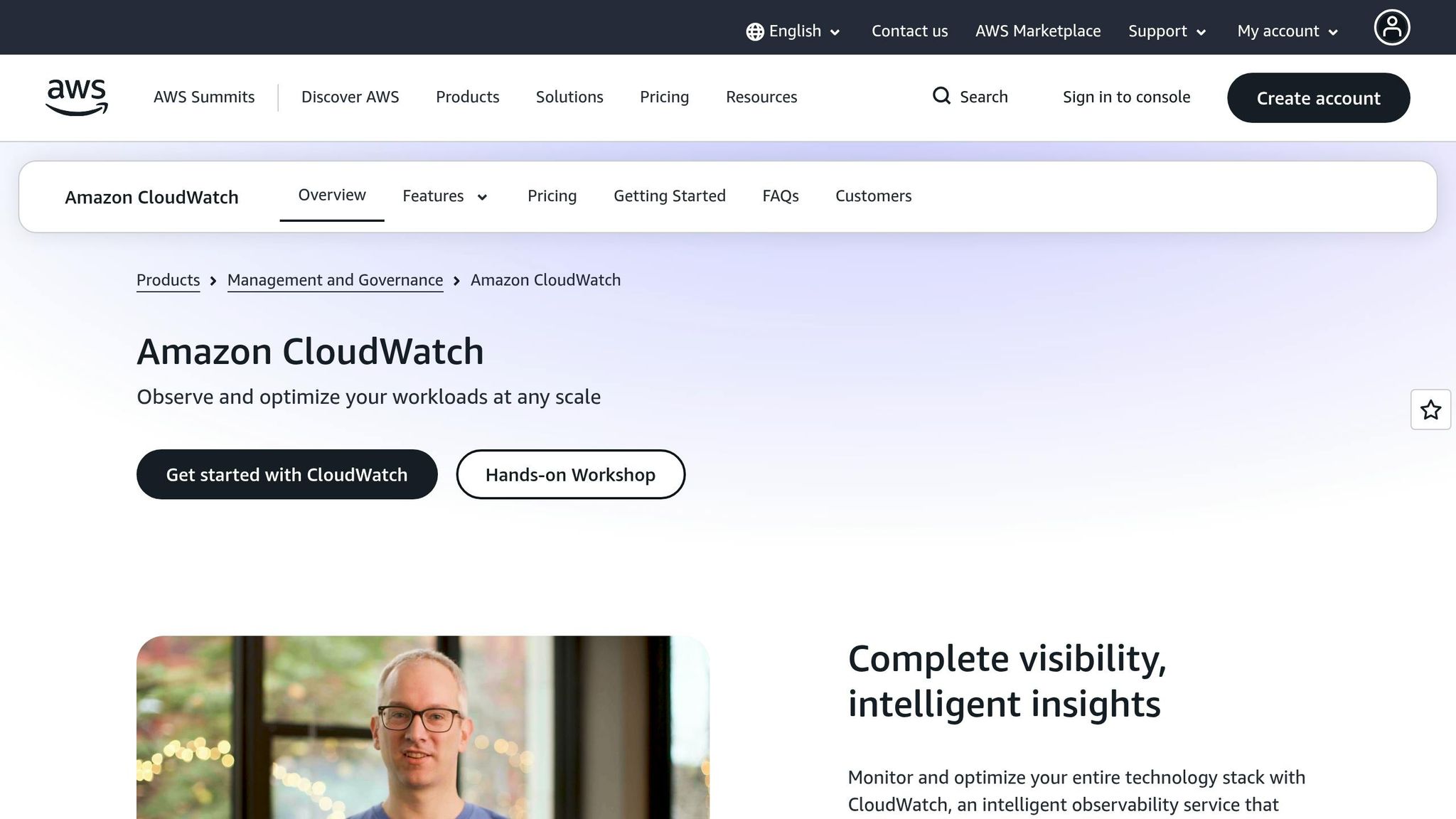
CloudWatch Billing Alarms complement AWS Budgets rather than replacing them. While Budgets monitor monthly totals, CloudWatch alarms are better for spotting daily or weekly cost spikes that might slip under the radar of a monthly budget.
Since AWS Budgets relies on CloudWatch to trigger notifications, ensure your IAM user has the necessary permissions (such as budgets:ModifyBudget) and can create CloudWatch alarms and SNS notifications. Keep in mind that budget data updates up to three times a day (every 8–12 hours), so CloudWatch alarms may not fire instantly. For most small and medium-sized businesses, this delay is manageable.
Using Cost Explorer Anomaly Detection
While CloudWatch alarms are great for identifying gradual cost increases, Cost Explorer Anomaly Detection (CAD) is designed to catch sudden spending spikes. It provides an additional layer of protection by flagging anomalies that might not breach your monthly budget but still indicate a problem. For example, a misconfigured script that launches dozens of instances overnight might not push you over your budget, but CAD would detect the spike immediately.
"CAD helps you catch sudden, unexpected spikes in spending... Budgets help you track your overall spending against planned limits over time." - Fredrik Tunvall, Product Manager for AWS Budgets and Cost Anomaly Detection
Alerts in CAD are triggered only when both a spending threshold (in your local currency) and a percentage threshold are exceeded. This dual condition helps minimise unnecessary alerts. Suggested thresholds based on your daily spend are:
- High spend accounts (top 20%): ~£1,600 and 20% above baseline.
- Medium spend accounts (next 30%): ~£400 and 30% above baseline.
- Low spend accounts (bottom 50%): ~£80 and 40% above baseline.
Start with broader thresholds and adjust them as you get a better understanding of your account's spending patterns. AWS recommends reviewing these thresholds every six months as your cloud environment evolves.
sbb-itb-0f2792e
Reducing On-Demand Costs Without Cutting Performance
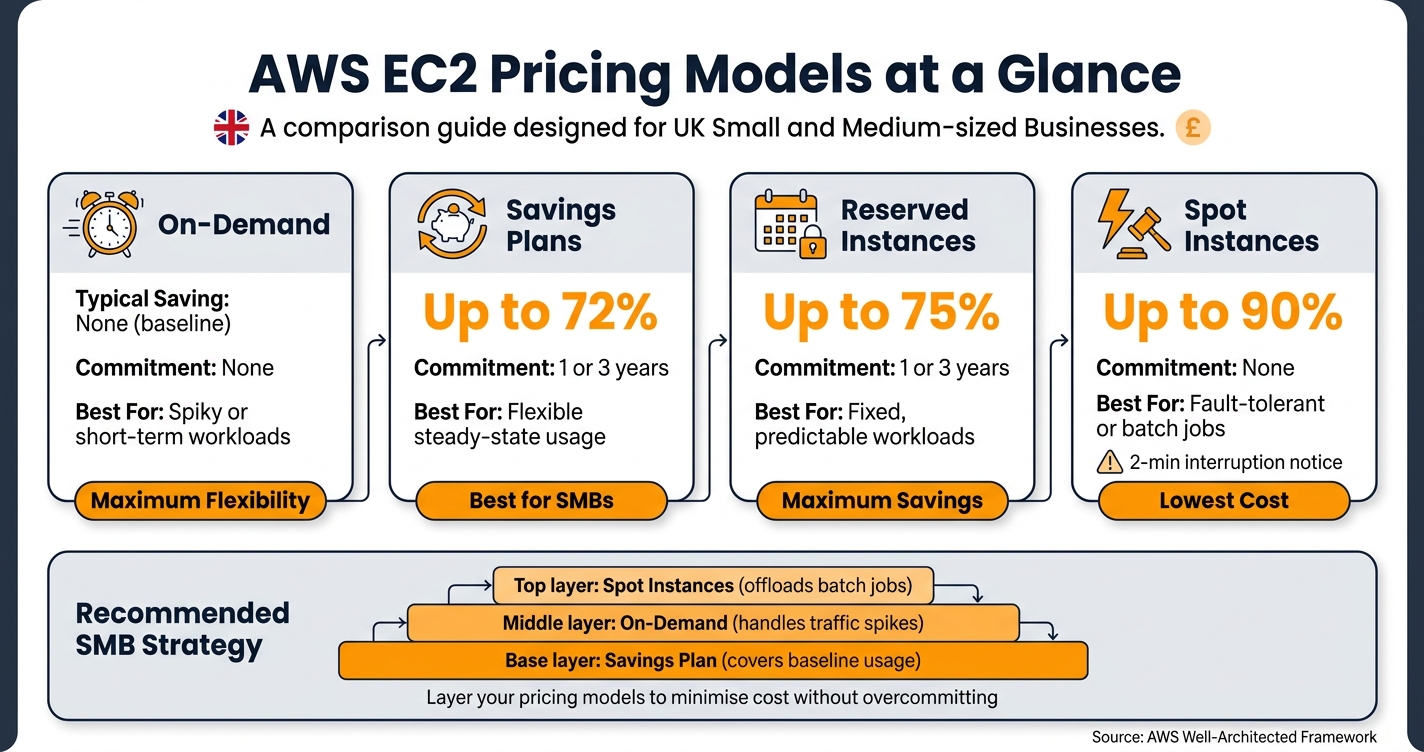
AWS EC2 Pricing Models: On-Demand vs Savings Plans vs Reserved vs Spot
Overspending alerts and budgets can highlight issues, but they don’t actually lower costs. To reduce On-Demand expenses without compromising workloads, consider these three strategies.
Rightsizing Instances
Rightsizing involves aligning your instance type and size to your workload’s actual needs, keeping costs as low as possible. Many small and medium-sized businesses (SMBs) over-provision their instances, leading to unnecessary spending.
AWS Compute Optimizer can help by analysing your CPU, memory, network, and storage usage over the past 14 days. It then suggests better-fitting instance types. For workloads with monthly or quarterly patterns, you can extend this analysis to 93 days by enabling the enhanced infrastructure metrics feature.
When reviewing recommendations, focus on the Performance Risk score. Only implement those rated 'Very Low' or 'Low', and always test changes in a non-production environment first.
For more accurate recommendations, deploy the CloudWatch unified agent on your EC2 instances. This ensures Compute Optimizer has full visibility into memory usage, which otherwise might result in incomplete data. Additionally, check the Migration Effort column for opportunities to switch to Graviton (ARM-based) instances. If marked as "Very Low" effort, these instances are worth considering, as they often provide better price-performance than x86 alternatives.
Rightsizing isn’t a one-off task. Most SMBs benefit from reviewing their instance sizing quarterly. Once you’ve optimised sizes, look into aligning operational hours with actual usage for further savings.
Scheduling Instances to Match Working Hours
Running development or testing environments 24/7 means paying for compute time when no one is using it. By stopping EC2 and RDS instances outside business hours, you can cut costs by 70% or more compared to keeping them running around the clock.
When an instance is stopped, compute charges cease, leaving only the cost of attached EBS storage. Use cost allocation tags like Environment: Dev or Schedule: BusinessHours to identify instances suitable for scheduling. You can then automate start and stop actions using AWS Systems Manager or EventBridge rules with a cron schedule.
However, there’s a caveat: On-Demand Capacity Reservations (ODCR) are charged at the full On-Demand rate even if the associated instances are stopped. Be sure to cancel any unused ODCRs once you start scheduling.
For applications where startup time is critical, consider EC2 hibernation instead of a full stop. Hibernation saves the RAM state to EBS, allowing the instance to resume without a cold boot.
These scheduling strategies work best when combined with a mix of purchase options to balance costs across varying workloads.
Mixing On-Demand with Other Purchase Options
On-Demand instances are ideal for unpredictable spikes or short-term needs, but you can save significantly by covering stable workloads with commitment-based models.
"Often your pricing model consists of a combination of multiple options, as determined by your availability." - AWS Well-Architected Framework
Savings Plans are a great starting point for SMBs. They offer up to 72% savings compared to On-Demand rates in exchange for a consistent hourly spend commitment over one or three years. These plans are flexible, applying across instance families and AWS regions. Reserved Instances, on the other hand, provide up to 75% savings but are tied to specific instance types and regions, making them better for workloads with predictable configurations.
For batch or fault-tolerant workloads like image processing or log analysis, Spot Instances can cut costs by up to 90% compared to On-Demand rates. The trade-off is that AWS can reclaim Spot capacity with just two minutes’ notice, so they’re not suitable for tasks requiring guaranteed availability.
Here’s a quick comparison of pricing models:
| Pricing Model | Typical Saving | Commitment | Best Suited For |
|---|---|---|---|
| On-Demand | None (baseline) | None | Spiky or short-term workloads |
| Savings Plans | Up to 72% | 1 or 3 years | Flexible steady-state usage |
| Reserved Instances | Up to 75% | 1 or 3 years | Fixed, predictable workloads |
| Spot Instances | Up to 90% | None | Fault-tolerant or batch jobs |
For SMBs, a practical approach is to layer these options: use a Savings Plan to cover your baseline, rely on On-Demand for spikes, and offload batch jobs to Spot Instances. This combination keeps costs manageable while avoiding overcommitment.
Governance and Reporting for Budget Compliance
Keeping AWS On-Demand spending under control requires a mix of strong governance and clear reporting. For UK SMBs, this means aligning financial processes with local practices while ensuring cost efficiency. Once you've optimised your instance mix, the next step is maintaining consistent cost control through proper ownership, regular reporting, and adherence to UK financial standards. These steps help ensure accountability and prevent overspending.
Assigning a Cost Owner
When no one is responsible for monitoring costs, it's easy for spending to spiral. Appointing a cost owner is crucial. This role, often filled by an engineering lead or someone with a finance background, ensures a direct link between technical decisions and financial oversight. They should have access to tools like Cost Explorer and receive budget alert notifications.
Ownership can be reinforced by tagging all resources appropriately. As Cleber Rodrigues, Cloud Architect, advises:
"The right time to add a tag is resource creation."
To enforce this, use Service Control Policies (SCPs) to block EC2 instance creation unless required tags are in place. This ensures every resource has a clear owner from the start. Additionally, routing budget alerts to a team distribution list promotes shared responsibility.
Building Monthly Cost Reports
AWS Cost Explorer is a powerful tool for creating detailed reports. Use it to filter spending by service, tag, or account, and focus on amortised costs for consistent monthly comparisons. Automate AWS Budgets reports to send updates directly to stakeholders, so the finance team doesn’t need to access the AWS console regularly. Group expenses by department or project using AWS Cost Categories, and apply your internal GBP exchange rate for accurate sterling reporting.
In addition to these steps, ensure your budget cycles align with UK financial norms for seamless integration into broader financial planning.
Aligning AWS Budgets with UK Financial Practices
The UK financial year runs from April to March, which differs from AWS's default calendar year. Adjust your budget periods to match the UK fiscal year or your specific project timelines.
For quarterly financial reviews, which are common among UK SMBs, set up forecasted spend alerts. These alerts notify you when AWS predicts your spending will exceed the budget before the period ends. This gives you time to make adjustments mid-month rather than being caught off guard at the end of the billing cycle. As highlighted in the AWS Well-Architected Framework:
"Accurate forecasts and implementation also provides accountability to stakeholders who are directly responsible for provisioning cost in the first place."
Finally, review your budget thresholds quarterly to reflect changes such as business growth, new workloads, or seasonal demand. This approach keeps your governance straightforward but effective, ensuring you're always prepared for shifts in spending.
Conclusion: Keeping AWS On-Demand Costs Under Control Long Term
Managing AWS On-Demand costs isn't a one-off task; it's an ongoing process that pays off over time. By following the strategies outlined - understanding what drives costs, creating a baseline budget, setting alerts, rightsizing resources, and putting governance in place - you're setting up a system that encourages consistent cost control. The real value lies in making these steps a regular part of your operations.
On average, 32% of resources are wasted due to being unused or oversized. For small businesses spending between £500 and £15,000 each month, overcharges of 40–60% are common, often because of default settings and a lack of active cost management. These aren't just numbers - they represent real money that could be redirected to fuel growth and innovation.
A smart way to tackle this challenge is by using the Crawl-Walk-Run model. Start by focusing on visibility and cutting waste in the first couple of months. Then, between months two and four, shift your attention to rightsizing. From month four onwards, work on optimising purchases and embedding a cost-conscious mindset across your organisation. This gradual approach avoids overwhelming your team while ensuring steady progress.
As Alexander Abgaryan, Founder & CEO of IT-Magic, explains:
"Cost optimisation is not a one-time project. It is a continuous practice that requires shared ownership across every team that touches infrastructure."
FAQs
What are the biggest hidden AWS On-Demand costs?
When using AWS On-Demand, some of the biggest hidden costs often stem from unnoticed architectural decisions and neglected resources. For instance, networking fees can quickly escalate. Charges for NAT Gateways (both hourly and per gigabyte), inter-zone data transfers, and outbound internet traffic are easy to underestimate.
Another common culprit is zombie resources - these include unused EBS volumes, idle Elastic IPs, and outdated snapshots that quietly rack up monthly charges. Lastly, overprovisioning instances to handle peak loads can lead to paying for capacity that remains unused most of the time. These overlooked areas can significantly impact your AWS bill.
How should I set budgets and alerts for EC2 spend?
To keep EC2 costs under control, take advantage of AWS Budgets within the Billing and Cost Management Console. Begin by tagging your instances based on their environment or project. This helps you monitor and categorise expenses more effectively.
Next, set up a monthly budget in GBP, and establish thresholds at 50%, 80%, and 90% of your spending limit. Make sure to enable alerts for both actual spending and forecasted costs. This way, you'll always stay updated and can avoid exceeding your budget.
When should I switch from On-Demand to Savings Plans, Reserved or Spot?
When your usage patterns stabilise, it's smart to shift to discounted pricing models. Savings Plans or Reserved Instances work well for workloads that are steady and run for long periods. For tasks that can handle interruptions - like batch processing or CI/CD pipelines - Spot Instances offer a cost-effective option. Meanwhile, On-Demand Instances are better suited for short-term projects, handling sudden traffic spikes, or testing new applications before making a longer-term commitment.
If you're a small or medium-sized business, look into resources specifically designed to help you manage AWS costs more efficiently. These guides often provide tailored advice for keeping expenses under control.