How to Automate Patching with AWS
Automate OS patching across cloud, on-prem and edge with centralised baselines, scheduled maintenance windows and compliance reporting.
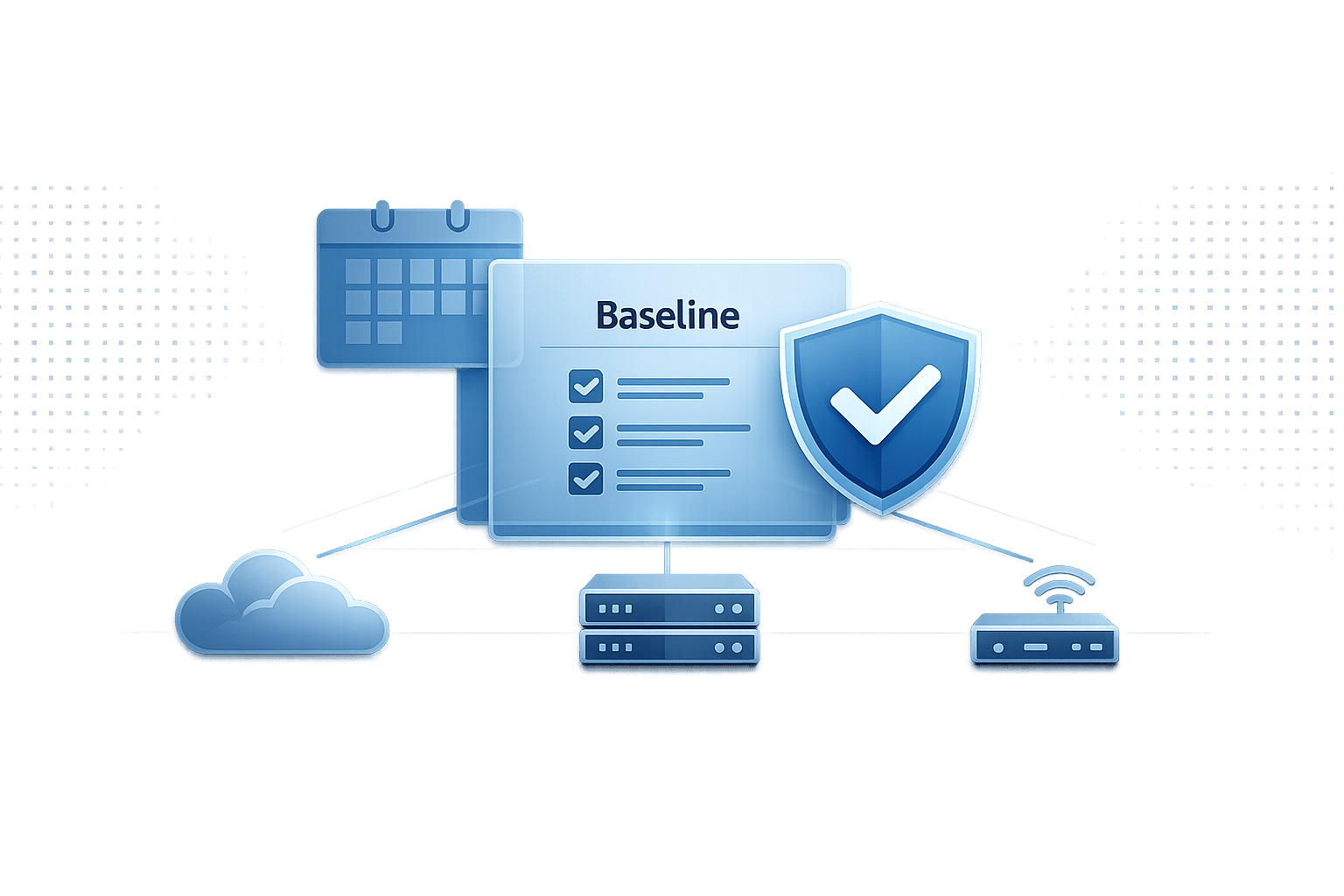
Keeping your systems updated is critical for security and compliance, but manual patching can be time-consuming and error-prone. AWS Systems Manager Patch Manager simplifies this by automating the entire patching process across multiple operating systems like Windows, Linux, and macOS, whether on EC2 instances, on-premises servers, or edge devices.
Here’s a quick summary of what you need to know:
- Automation with Patch Manager: Automates patch discovery, download, and installation, focusing on security updates by default.
- Patch Policies: Since December 2022, you can define organisation-wide patch settings for all AWS accounts and regions from a centralised configuration.
- Maintenance Windows: Schedule updates during off-peak hours to minimise disruptions.
- IAM Roles & Permissions: Ensure instances have the correct IAM roles for smooth operations.
- Custom Baselines: Create tailored patch rules for different environments (e.g., Dev vs. Prod).
- Quick Setup: Streamlines patching across multiple accounts and regions.
This guide walks you through setting up prerequisites, managing patch baselines, scheduling updates, and monitoring compliance to ensure your systems remain secure and stable.
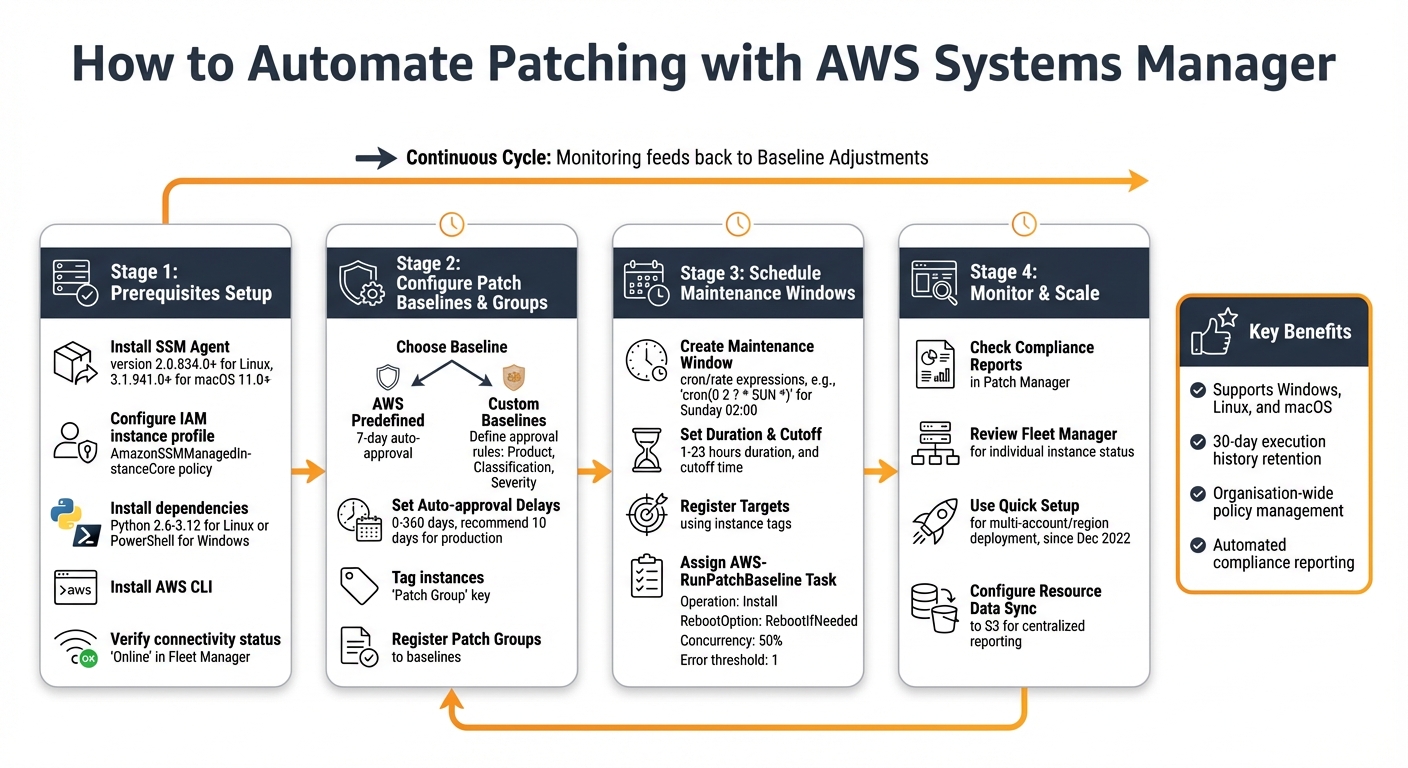
AWS Patch Manager Automated Patching Setup Process
Automate EC2 Patching with AWS Systems Manager | AWS System Manager tutorial for Beginners
Prerequisites for Automated Patching
To automate patching on your EC2 instances, you'll need to ensure they are set up with the right tools and permissions. Start by verifying that the SSM Agent is installed and running on every instance you plan to manage. For Linux instances using AWS-RunPatchBaseline, the agent must be version 2.0.834.0 or newer, while macOS 11.0+ requires version 3.1.941.0 or later. Luckily, most Amazon Machine Images (AMIs) - including Amazon Linux 1, 2, and 2023, as well as Ubuntu Server 16.04 or newer - already come with the agent pre-installed.
Your instances also need an IAM instance profile with the AmazonSSMManagedInstanceCore managed policy. This policy enables communication with the Systems Manager API. Without it, your instances won’t show up as managed nodes in the Systems Manager console, and patching won't work.
For Linux systems, Python is also critical. Amazon Linux 2 and RHEL 7 support Python versions 2.6 to 3.12, while Ubuntu and Debian require Python 3.0 to 3.12. Keep in mind that RHEL 8 doesn’t include Python by default, so you’ll need to install it manually. On Windows instances, PowerShell is used to download patch baseline snapshots and interact with the Windows Update API.
Installing AWS CLI and SSM Agent
The AWS CLI is another essential tool for managing patching operations from the command line. Download the latest version from the AWS website, and configure it with your credentials using the aws configure command.
If the SSM Agent isn’t already installed on your instances, you’ll need to set it up. For Amazon Linux 2023 and RHEL 8/9, use dnf, and for Amazon Linux 2 or RHEL 7, use yum:
sudo dnf install -y https://s3.amazonaws.com/ec2-downloads-windows/SSMAgent/latest/linux_amd64/amazon-ssm-agent.rpm
or
sudo yum install -y https://s3.amazonaws.com/ec2-downloads-windows/SSMAgent/latest/linux_amd64/amazon-ssm-agent.rpm
For Ubuntu and Debian, download the .deb package using wget and install it with:
sudo dpkg -i amazon-ssm-agent.deb
To ensure the SSM Agent stays up to date across your instances, you can create a State Manager association using the AWS-UpdateSSMAgent document. This automates agent updates, eliminating the need for manual intervention. Alternatively, you can enable the "Auto update SSM Agent" setting in Fleet Manager or Quick Setup to keep all managed nodes on the latest version.
Once the AWS CLI and SSM Agent are set up, assign the required IAM roles to enable smooth communication with Systems Manager. Following AWS performance best practices during this setup ensures your infrastructure remains optimized and secure.
Setting Up IAM Roles and Permissions
Attach an IAM role with the AmazonSSMManagedInstanceCore policy to your instances. This policy replaces the older AmazonEC2RoleforSSM policy and can be applied either when launching instances or by modifying their settings later.
If you're using Quick Setup patch policies, your instances will also need s3:GetObject permissions for the S3 bucket created by Quick Setup. This bucket, named in the format aws-quicksetup-patchpolicy-[account-id]-[config-id], stores baseline override files. For custom instance profiles, tag the IAM role with the key-value pair: Key: QSConfigId-[id], Value: [id].
To execute patching tasks, you’ll need a maintenance window service role. While AWS can automatically create a service-linked role, creating a custom role with least-privilege permissions is a safer option. Quick Setup can also add the required IAM policies to existing instance profiles if you choose the "Add required IAM policies to existing instance profiles" option during configuration.
Verifying Instance Connectivity
Ensuring connectivity is vital to avoid disruptions during automated patching. Check that your instances appear in the Systems Manager console under Fleet Manager > Managed Nodes. The SSM Agent ping status should display "Online". If instances aren’t visible, confirm they can connect to the necessary endpoints: Systems Manager, ec2messages, and S3.
You can verify connectivity using the following CLI command:
aws ssm start-session --target <instance-id>
A successful session indicates that the agent is working correctly and your CLI is properly configured. For Windows instances, open Task Manager, go to the Services tab, and check that AmazonSSMAgent is running.
Before moving forward with full patching operations, perform a simple Scan operation using Run Command. This checks if instances can retrieve patch information without installing updates, giving you confidence that everything is set up properly.
Creating Patch Baselines and Groups
Once your connectivity is set up, the next step is to manage patching by configuring baselines. These baselines determine which patches are approved for installation and when they’re applied to your instances. Think of a patch baseline as a set of rules that guide the update process. AWS offers predefined baselines for supported operating systems, like AWS-AmazonLinux2DefaultPatchBaseline for Amazon Linux 2 or AWS-DefaultPatchBaseline for Windows Server. These baselines focus on security-related updates and include a standard seven-day auto-approval delay, but they are read-only.
To gain more control, you can create custom patch baselines. These allow you to define approval rules based on factors such as Product (e.g., WindowsServer2019), Classification (e.g., CriticalUpdates, Security), and Severity (e.g., Critical, Important). You can also tailor auto-approval delays to suit different environments - for instance, approving patches immediately for development instances but delaying approval by 10 days for production systems to allow for testing. If a patch causes issues, you can block it by adding it to the "Rejected patches" list, ensuring it won’t be installed across your managed nodes.
Configuring Patch Baselines
Custom baselines should align with your organisation's policies for choosing cost-effective AWS services and managing changes. For example, you might configure a baseline for production Windows servers that only allows CriticalUpdates and SecurityUpdates with a severity level of Critical or Important, while setting a 10-day auto-approval delay. This approach ensures that patches are tested before being deployed to critical systems.
Auto-approval delays can range from 0 to 360 days. However, on Windows Server 2019 and 2022, delays exceeding 30 days risk patches becoming outdated. For Ubuntu Server, auto-approval delays based on release dates aren’t supported due to inconsistent package metadata, meaning patches are approved immediately.
You can also assign a compliance severity level (e.g., Critical, High, Medium) to your baseline. If a patch that meets your approval rules is missing from a node, Patch Manager marks the instance as "Non-Compliant" based on the severity level you’ve set. Keep in mind that each managed node can only be associated with one patch baseline at a time.
Tagging Instances and Defining Patch Groups
To manage patching across different sets of instances, you can use patch groups. These are created by tagging your EC2 instances with the key Patch Group (or PatchGroup if spaces aren’t allowed). The tag value becomes the name of the patch group, such as Production, WebServers-Linux, or WEBAPP-DEV-AL2.
After tagging your instances, you must register each patch group with a specific patch baseline. This can be done through the Systems Manager console or by using the AWS CLI command aws ssm register-patch-baseline-for-patch-group. This ensures that when a patching operation is initiated, the correct rules are applied to the appropriate instances. A typical strategy is to organise patch groups by environment - such as Dev, Test, and Prod - so updates can be rolled out gradually, starting with lower environments before reaching production.
AWS also recommends using Patch Policies via Quick Setup for organisation-wide patching. This method simplifies configuration across multiple accounts and regions, eliminating the need for manual patch group management. However, patch groups remain a practical choice for single-account setups or when you need precise control over specific instances. These configurations form the foundation for automated patching through scheduled maintenance windows.
Automating Patching with Maintenance Windows
Using maintenance windows is a smart way to automate patching without disrupting your business operations during peak hours. As Mats Lannér, Software Development Manager for Amazon EC2 Systems Manager, puts it:
"You can consider the Maintenance Window capability of Systems Manager to be a replacement for tools like cron or Windows Task Scheduler."
Below, we'll break down how to create these windows and assign patching tasks to them effectively.
Creating Maintenance Windows
A maintenance window is essentially a schedule that includes a defined time, duration, targets, and tasks. To set one up, go to Systems Manager > Maintenance Windows in the AWS console. Begin by naming your window and setting its schedule using cron or rate expressions [28,30]. For example:
cron(0 2 ? * SUN *)triggers the window every Sunday at 02:00.rate(7 days)runs it every seven days.
The Duration field (ranging from 1 to 23 hours) determines how long the window stays active. The Stop initiating tasks field sets a cutoff time, ensuring no new tasks start as the window nears its end [28,30]. For instance, with a 3-hour window and a 1-hour cutoff, no new patching tasks will begin after the 2-hour mark. Adding a buffer hour is a good idea to accommodate longer patching tasks [28,32]. Always specify the schedule's timezone using IANA formats like "Europe/London" to align with your local time [28,29].
Assigning Patching Tasks to Maintenance Windows
Once your maintenance window is set up, you need to register targets and tasks. Instead of manually adding instance IDs, use tags to automatically include new instances. Opt for "Specify instance tags" and define key-value pairs (e.g., Key=Environment, Value=Production) [29,30].
Next, register a Run Command task using the AWS-RunPatchBaseline document. This task manages the patching process. Below is a quick guide to configuring key parameters:
| Parameter | Recommended Setting | Purpose |
|---|---|---|
| Operation | Install |
Installs updates (use Scan only for identifying missing patches) |
| RebootOption | RebootIfNeeded or NoReboot |
Determines if instances reboot post-patching |
| Concurrency | 50% or a specific number | Limits how many instances patch at once to avoid overloading resources |
| Error threshold | 1 | Stops the task after the first failure |
Set Operation to Install to ensure updates are applied. Use Scan only if you're checking for missing patches without installing them. Adjust Concurrency to patch either a percentage of instances or a fixed number simultaneously. Finally, define an Error threshold to halt the process if issues occur.
AWS Systems Manager keeps a 30-day execution history for maintenance windows, offering insights into what updates were applied and when. This makes it easier to track and review your patching activities.
Monitoring and Troubleshooting Patch Compliance
Checking Patch Status and Compliance Reports
After your scheduled maintenance windows wrap up, it's time to confirm patch compliance. This step ensures all patches have been applied correctly. AWS Systems Manager makes this process straightforward by providing detailed compliance reports. Head to the Compliance reporting tab in Patch Manager for an in-depth view of each managed node. You'll find information about the patch baseline used and whether the instance is marked as compliant or non-compliant.
For a more general overview, the Systems Manager Compliance Tool is your go-to. It summarises your entire fleet, categorising instances as either compliant or non-compliant. If you need details for a specific instance, use Fleet Manager. Select the managed node in question, then check its "Patches" property. This section shows the status of individual updates - whether they're installed, missing, or failed. For supported Linux distributions like Amazon Linux 2 or RHEL, compliance reports even include CVE IDs for missing or failed patches.
Don’t forget to verify the "Baseline ID used" column to ensure the correct patch rules are in place. Keep in mind that patch compliance data reflects a point-in-time snapshot from the most recent scan or installation. If you're using Quick Setup for organisation-wide patching, the configuration page provides a centralised view of patching status across all targeted accounts and regions.
If you spot any discrepancies, it's time to troubleshoot and fix the issues.
Fixing Errors and Rolling Back Patches
Addressing patching errors quickly is crucial. A common issue is inconsistent compliance data, which can occur because each operation overwrites previous results. To minimise this, stick to one of the AWS automation tools for patching - whether that's Patch Policy, Maintenance Window, or "Patch now" - and disable any redundant tasks that might conflict.
Another potential problem arises if you cancel a "Patch now" operation midway. The associated reboot task (AWS-PatchRebootAssociation) won't automatically cancel, which could lead to unexpected system restarts. To prevent this, go to State Manager and manually delete the reboot association.
Error thresholds often depend on the size of your fleet, so adjust these settings to fit your specific environment. If compliance issues persist, run a combined scan and install operation to bring systems back in line. Be aware that major version upgrades, such as moving from Windows Server 2016 to 2019 or RHEL 7 to 8, are not supported and will fail.
Also, check for the InstalledPendingReboot state in your compliance results. Patches in this state may be installed but won't take effect until the system restarts.
Scaling Patching Across Multiple Accounts and Regions
For organisations managing multiple AWS accounts and regions, scaling patch operations becomes a top priority. By building on defined patch baselines and groups, you can use centralised policies to maintain consistency across the board.
Using Quick Setup for Organisation-Wide Patching
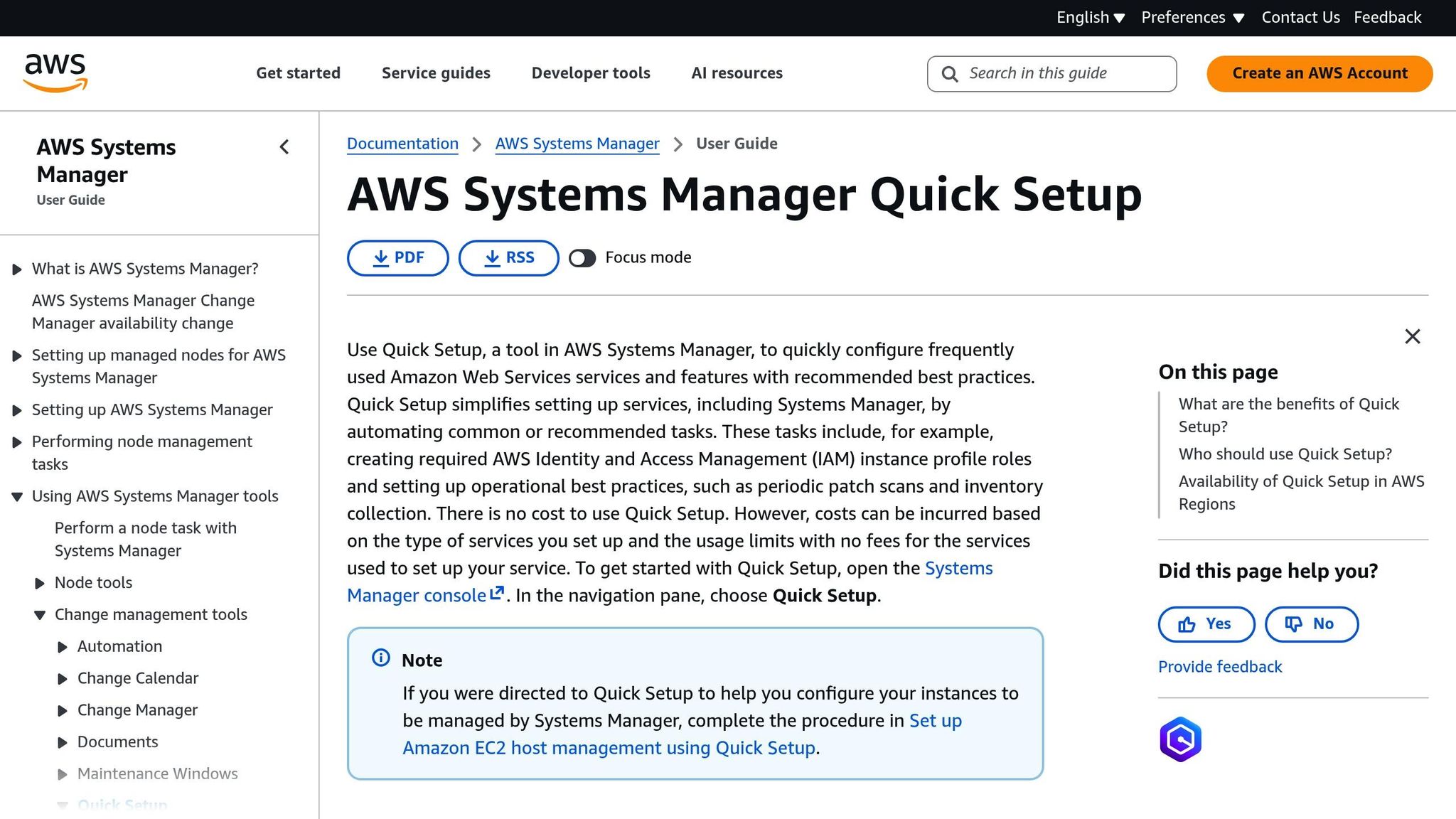
Managing patches across multiple accounts and regions is more efficient with AWS's Quick Setup Patch Policies, introduced in December 2022. This feature allows you to define a single patch policy within your AWS Organisations management account, which is then automatically applied to all member accounts and specified regions. This eliminates the hassle of logging into each account to configure patching individually.
The setup wizard offers flexibility, letting you target your entire organisation, specific Organisational Units (OUs), or even particular regions. Within these targets, you can refine your scope further by filtering for all managed nodes or specific resource tags. For instance, you could schedule daily scans at 01:00 UTC and restrict patch installations to Sundays at 02:00 UTC to minimise operational disruptions.
"Patch Policies provide a user experience in a single console to easily define and enforce patch compliance across accounts and Regions with a few clicks." - AWS
Quick Setup also simplifies permission management. If your instances already have IAM roles attached, it can automatically add the AmazonSSMManagedInstanceCore policy to the existing instance profiles. Additionally, it helps address configuration drift across accounts, ensuring consistent settings.
Maintaining Consistent Baselines Across Regions
Once you've standardised deployment using Quick Setup, maintaining consistent patch baselines across regions becomes key. You can achieve this by centralising the configuration in your management account. Create custom patch baselines and use a Lambda function to replicate updates across regions, with synchronisation happening hourly.
For better visibility, configure a Resource Data Sync to aggregate patching and compliance data from all regions into a central Amazon S3 bucket. This enables detailed reporting with tools like Amazon Athena and Amazon QuickSight. Additionally, AWS Systems Manager Explorer provides a unified dashboard to monitor patch compliance across accounts and regions.
When scaling patch operations across regions, it's wise to set concurrency limits - such as patching 10% of instances at a time - and define error thresholds. These measures help prevent widespread outages by halting operations if a certain percentage of nodes fail.
Conclusion
Using AWS Systems Manager to automate patch management can help small and medium-sized businesses maintain security and compliance across their infrastructure. By centralising patch operations, you save time previously spent manually updating individual instances and reduce the risk of human error.
The advantages go beyond just security. With Quick Setup patch policies, you can manage patching across multiple AWS accounts and regions through a single dashboard, cutting down administrative effort. It also provides detailed compliance reporting, flexible scheduling options to separate scans from installations, and support for Linux, Windows, and macOS environments. Whether you need to address zero-day vulnerabilities immediately with the "Patch now" feature or schedule updates during off-peak hours, you remain in control of your patching strategy.
"Automation is a necessity to have a great vulnerability management system because it is estimated that over 2,000 cyberattacks occur on a daily basis making a manual process inefficient and costly." - Chanel, Cloud/DevOps Engineer
Beyond patching, automation fits seamlessly into broader AWS infrastructure management strategies. This process not only secures your environment but also supports efforts to optimise performance and reduce costs. For small and medium-sized businesses aiming to refine their AWS setup, effective cost management, performance improvements, and following architectural best practices are key. The AWS Optimisation Tips, Costs & Best Practices for Small and Medium sized businesses blog provides tailored advice, offering actionable tips on cost savings, security, migration, and automation to help your business scale effectively on AWS.
FAQs
How do I choose between Patch Policies and Maintenance Windows?
When deciding between the two, it really comes down to your patching requirements. Patch Policies are perfect if you're after centralised control. They work well for automating patching across several accounts and regions, using pre-set schedules and baselines to keep everything consistent and streamlined.
On the other hand, Maintenance Windows are your go-to option for handling patching tasks that are time-sensitive. They let you schedule updates at specific times to minimise disruptions, making them ideal for high-priority or critical maintenance tasks.
In short, choose Patch Policies for automation and scalability, and opt for Maintenance Windows when precise timing is essential.
What networking is required for instances to patch via Systems Manager?
Instances need network access to download updates from the patch source and to connect to Amazon S3 if you're using S3 buckets for patching data. To enable this, you'll typically need to configure security groups, VPC settings, and possibly NAT gateways or internet gateways to allow outbound access to AWS endpoints.
It's also essential to confirm that your instances have the necessary permissions to install patches and access the required resources.
How can I patch production safely without unexpected reboots?
To keep production systems running smoothly without unexpected reboots, take advantage of AWS Systems Manager maintenance windows. These allow you to schedule patching during non-peak hours, minimising disruption. Set up patch policies to maintain centralised control, define approval timelines, and automate deployments for streamlined updates.
For added safety, use patch lifecycle hooks. These let you execute pre- and post-patching scripts, ensuring your applications remain stable throughout the process. The AWS-RunPatchBaseline document is a handy tool for applying patches in a structured and well-timed way, reducing the impact on your operations.