AWS Auto Scaling Cost-Saving Strategies
How SMBs can cut cloud bills by combining dynamic, scheduled and predictive Auto Scaling, right‑sizing instances and using Reserved or Savings plans.

AWS Auto Scaling is a tool that helps businesses manage cloud costs by automatically adjusting resources to match demand. This means you can avoid overpaying for unused capacity or suffering from performance issues during traffic spikes. Here's what you need to know:
- Dynamic Scaling: Automatically adjusts resources based on real-time metrics like CPU usage, ensuring you only pay for what you need.
- Scheduled Scaling: Pre-plans resource changes for predictable traffic patterns, such as UK business hours or seasonal peaks.
- Predictive Scaling: Uses machine learning to forecast demand and adjust capacity ahead of time.
For small and medium-sized businesses (SMBs), these strategies can cut cloud costs significantly while maintaining performance. Combine scaling features with tools like AWS Compute Optimizer to choose efficient instance sizes and consider options like Reserved Instances or Savings Plans for consistent workloads. Regular monitoring and adjustments are crucial to avoid unnecessary expenses.
Key takeaway: AWS Auto Scaling helps SMBs save money by aligning cloud resources with actual demand, reducing overhead during off-peak times and handling spikes efficiently. Start with analysing your current setup, configure scaling policies smartly, and monitor costs regularly to maximise savings.
Getting the most out of AWS Auto Scaling | The Keys to AWS Optimization | S12 E7
AWS Auto Scaling Features That Reduce Costs
AWS Auto Scaling is a powerful tool that helps businesses manage their cloud resources efficiently, ensuring they only pay for what they actually use. It achieves this by adjusting capacity to match demand, offering three key features tailored to different usage patterns.
Dynamic Scaling for Changing Demand
Dynamic scaling keeps an eye on real-time metrics and automatically adjusts the number of instances running based on pre-defined thresholds. This approach is particularly useful for applications like websites and APIs, where traffic can spike or dip unpredictably throughout the day.
For small and medium-sized businesses (SMBs), target tracking scaling policies can simplify the process. These policies allow you to maintain a specific metric, like average CPU utilisation between 50–60% or request latency below a certain level, without needing intricate rules. For example, if CPU usage rises above your set target, additional instances are launched; when demand slows, instances are scaled back.
This feature not only ensures your systems remain responsive but also helps cut costs by reducing idle capacity. Businesses often see significant savings during off-peak times, such as overnight or weekends, when fewer resources are needed. To avoid rapid scaling up and down - also known as "flapping" - you can set cool-down periods (e.g., 300 seconds) and define limits for the minimum and maximum number of instances.
Dynamic scaling works particularly well for workloads behind an Application Load Balancer, where traffic can vary significantly even within a single day.
For workloads with predictable traffic patterns, however, another strategy may be more suitable.
Scheduled Scaling for Known Peak Times
Scheduled scaling is perfect for predictable traffic trends, such as typical UK business hours or seasonal surges. By planning capacity adjustments in advance, businesses can ensure they have the right resources at the right time without wasting money on unnecessary instances.
For example, UK businesses might scale down non-production environments after 18:00 and on weekends, then ramp up capacity before the start of the workday. Retailers can use this feature to prepare for major shopping events like Black Friday, Boxing Day sales, or other seasonal promotions. By increasing resources only when needed, companies can avoid the expense of running surplus capacity during quieter periods.
Analysing CloudWatch metrics can help identify traffic patterns and fine-tune scheduled scaling actions. This ensures your scaling plan aligns with actual demand rather than guesswork.
When historical data is available, predictive scaling takes this optimisation to the next level.
Predictive Scaling Using Machine Learning
Predictive scaling leverages machine learning to analyse historical data and forecast future demand. By adjusting capacity ahead of anticipated spikes, it helps maintain performance during busy periods while avoiding over-provisioning.
This feature is especially useful for workloads with consistent, recurring patterns, such as weekday traffic peaks, monthly reporting tasks, or regular marketing email campaigns. To make the most of predictive scaling, ensure your Auto Scaling setup includes accurate metrics that reflect your workload's behaviour.
A smart way to maximise savings is to combine all three scaling features. Use predictive scaling to establish a baseline for regular patterns, scheduled scaling for specific events like campaigns or maintenance, and dynamic scaling to handle unexpected demand spikes. Together, these strategies ensure your resources stay aligned with demand, while also offering flexibility for unforeseen changes.
Different workloads benefit from different approaches. Dynamic scaling suits web and API traffic with variable demand, while scheduled and predictive scaling are ideal for batch processes, containerised services on Amazon ECS or EKS, or business systems with clear time-based usage patterns. By tailoring Auto Scaling strategies to specific workloads, UK SMBs can optimise their resources and keep costs under control.
For more detailed tips on using Auto Scaling to manage AWS costs, check out AWS Optimisation Tips, Costs & Best Practices for Small and Medium Sized Business. This guide provides practical advice for scaling strategies and cost management, specifically designed for smaller organisations.
How to Set Up AWS Auto Scaling for Maximum Savings
Setting up AWS Auto Scaling is all about balancing performance with cost savings. By carefully configuring your instances, scaling policies, and monitoring tools, you can keep your cloud expenses under control without compromising on performance.
Choosing the Right Instance Sizes
Picking the right EC2 instance family and size is the cornerstone of cost-efficient Auto Scaling. Many small and medium-sized businesses (SMBs) make the mistake of guessing their needs, leading to overprovisioning and unnecessary expenses.
Instead, start by analysing actual resource usage. Use Amazon CloudWatch to gather metrics like CPU, memory, network, and disk usage over a full business cycle. Focus on sustained usage rather than brief spikes, aiming for an average CPU utilisation of 40–60% on your baseline capacity. This range provides enough flexibility for normal fluctuations without overpaying for oversized instances.
Once you have this data, turn to AWS Compute Optimizer for recommendations. This tool reviews your usage patterns and suggests more efficient instance types. For instance, if you're using m6i.large instances but only consuming 30% of the CPU, it might recommend switching to m6i.medium instances.
Before making changes in production, test a few candidate instance types in a staging environment. Simulate typical UK business hours with load tests to ensure the new instances can handle your workload without issues. Once you're confident, update your launch templates or configurations and document your chosen instance types along with their on-demand and discounted hourly costs. This documentation not only helps with future reviews but also keeps finance teams in the loop.
For workloads that are predictable and always on - like a business-critical web application used during UK office hours - consider committing part of your baseline capacity to one-year Reserved Instances or Compute Savings Plans. These options lock in lower hourly rates while still allowing Auto Scaling to add on-demand or Spot Instances during peak times. For non-critical tasks, such as batch processing or reporting, Spot Instances are a cost-effective choice.
Configuring Scaling Policies Correctly
Once you've selected the right instance sizes, it's time to fine-tune your scaling policies to match capacity with demand.
Key settings for Auto Scaling Groups (ASGs) include minimum, maximum, and desired capacity, scaling metrics and thresholds, cooldown periods, and how instances are distributed across purchase options. Setting these parameters correctly ensures you avoid both under-provisioning (which can hurt performance) and over-provisioning (which wastes money).
- Minimum capacity: Set this to cover your needs during low-demand periods.
- Maximum capacity: Define a realistic upper limit based on historical peak demand, with a small buffer - around 20% - to avoid runaway costs.
Target tracking policies are often the best choice for adjusting capacity. For example, you can aim for an average CPU utilisation of 50–60% or a specific number of requests per second per instance. If you're targeting CPU usage, this approach ensures your instances are neither overworked nor underutilised.
To prevent frequent fluctuations in capacity, implement conservative scale-in rules. Require metrics to stay below the lower threshold for a few minutes before scaling down. This avoids reacting to temporary dips in demand.
For workloads with predictable patterns, step scaling can be added. For instance, you could configure the system to add multiple instances when CPU usage exceeds 80% for five minutes, ensuring a quick response to sudden spikes in demand.
Warm-up periods are another crucial setting. If your application takes three minutes to initialise, set the warm-up time accordingly. This prevents Auto Scaling from misjudging demand while new instances are still starting up.
With these policies in place, ongoing monitoring will confirm whether your adjustments are delivering the expected cost savings.
Monitoring Costs with AWS Tools
Even after setting up Auto Scaling, monitoring is essential to ensure you're achieving the desired savings.
Start by using Amazon CloudWatch for technical metrics and AWS Cost Explorer for financial insights. Configure these tools to display costs in GBP, set budget thresholds aligned with your financial cycles, and enable alerts for overspending.
Consistent tagging across your Auto Scaling groups is key. Use tags like "Environment=Production" or "CostCentre=Marketing" to track expenses by application or department. Enable cost allocation tags to get a clearer picture of how different groups contribute to overall spending.
Monitor metrics such as average and maximum CPU utilisation, request counts, and load balancer latency alongside cost data like daily EC2 spend and cost per 1,000 requests. Dashboards combining these metrics make it easier to spot trends and identify opportunities for improvement.
If you notice consistently low utilisation - say, CPU averages below 30% - or infrequent scale-in events, it may be time to reduce baseline capacity or adjust thresholds. On the other hand, frequent scaling events or high error rates could indicate overly aggressive scaling policies or the need for more baseline capacity to stabilise performance.
AWS Budgets and cost anomaly detection provide additional safeguards. Set up budgets to alert you when spending approaches or exceeds thresholds, and enable anomaly detection to catch unexpected cost spikes early. For example, if a misconfigured policy suddenly launches dozens of instances, you'll get an alert before it significantly impacts your monthly bill.
Here’s a real-world example: A UK-based e-commerce SMB previously ran a fixed fleet of eight m6i.large instances, leading to a predictable but high monthly EC2 bill. After implementing Auto Scaling with a minimum of three instances, a maximum of ten, and target tracking at 55% CPU, along with scheduled scaling to reduce capacity overnight and on weekends, they saw a significant drop in instance usage during off-peak hours. Over time, this translated into noticeable cost savings in GBP, with no impact on performance metrics like page load times or conversion rates. Comparing metrics such as average instance hours per day and total EC2 costs before and after Auto Scaling highlighted the financial benefits.
For SMBs without in-house cloud expertise or those planning major changes - like migrating from on-premises infrastructure or preparing for increased traffic - external resources can provide helpful guidance. Specialist blogs, like AWS Optimisation Tips, Costs & Best Practices for Small and Medium Sized Business, offer practical advice tailored to SMBs with limited budgets and staff, making them a great starting point before considering consultants or managed services.
Mistakes to Avoid with AWS Auto Scaling
AWS Auto Scaling is a powerful tool for managing cloud resources efficiently, but if it's not configured correctly, it can lead to unexpected costs. While the service itself is free, missteps like poorly set thresholds, overlooking discount options, or outdated configurations can inflate your cloud bills without improving performance.
Setting Scaling Thresholds Too High
A common error is setting scaling thresholds so high that Auto Scaling rarely activates. For example, if you configure scaling to occur only when CPU usage exceeds 90% for 10 minutes, your system could experience prolonged high loads before scaling kicks in. To compensate, some businesses run additional baseline instances to handle potential spikes, often paying for idle capacity during off-peak hours - like overnight or weekends, when UK traffic typically drops.
To strike the right balance, consider testing lower thresholds in a controlled staging environment. Conduct these tests during UK business hours to monitor response times, error rates, and latency. Aiming for a CPU utilisation target of 60–70% or a similar request-per-instance threshold often ensures resources are used effectively without overloading. This reduces the need for excessive baseline capacity, keeping costs under control.
However, scaling isn't just about thresholds. Poorly tuned policies can lead to frequent, unnecessary scaling events, driving up costs. For instance, rapid scale-out followed by immediate scale-in is a red flag. Regularly reviewing your Auto Scaling activity logs can help you identify and address such inefficiencies.
Not Using Reserved Instances or Savings Plans
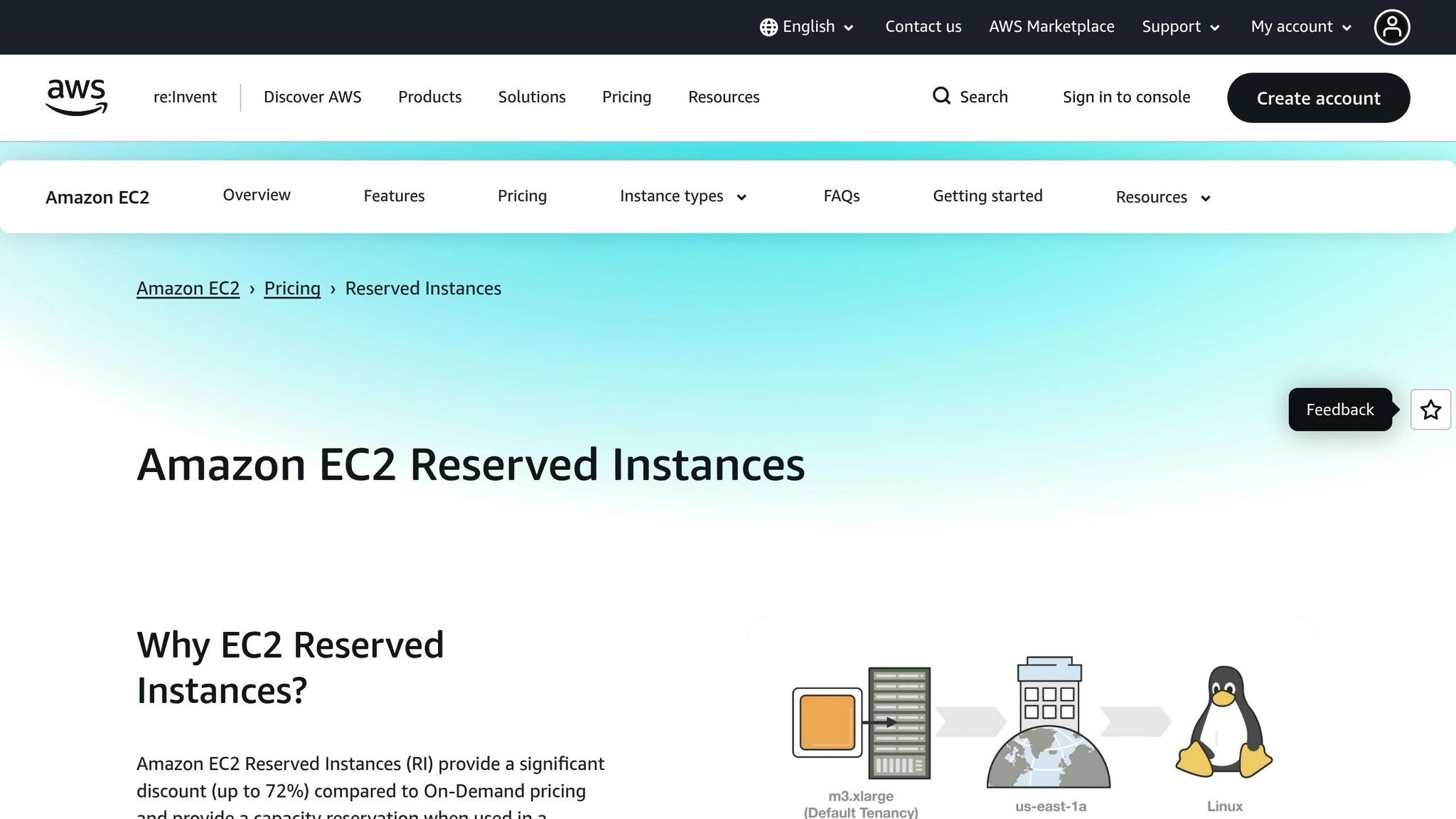
While Auto Scaling adjusts capacity to meet demand, it doesn't lower the price of the instances themselves. Relying solely on on-demand instances for consistent workloads can quickly become expensive.
To manage costs, cover your steady baseline with Reserved Instances or Savings Plans. For example, if your Auto Scaling group consistently runs at least three instances, commit to covering those with a one-year or three-year discount plan. Reserved Instances are ideal for stable workloads, especially if you've been using the same instance types in the eu-west-2 region for years. On the other hand, Savings Plans provide flexibility, letting you adjust instance types, sizes, or even switch compute services as your needs evolve - perfect for growing SMBs experimenting with new architectures.
To see how much you could save, export your usage data from Cost Explorer and calculate your baseline "always-on" compute hours. Compare your current on-demand spend with the discounted rates from Reserved Instances or Savings Plans. Often, covering just the baseline can significantly cut annual EC2 costs, while Auto Scaling manages the variable demand.
Ignoring these discount options can lead to unpredictable and higher monthly bills, complicating budget planning and justifications to stakeholders.
Failing to Review Scaling Settings Regularly
Workload patterns are rarely static. They shift with new customers, marketing efforts, seasonal trends, and product updates. Scaling settings that worked six months ago might now be too aggressive or too conservative, leading to either wasted capacity or degraded performance.
Regular reviews of your scaling settings are crucial. For example, a UK SaaS company might initially set a high minimum instance count "just in case" and rely entirely on on-demand instances. This could result in a large, always-on fleet, even during quieter overnight hours. By analysing metrics, they might decide to lower the minimum capacity, adjust CPU and request thresholds for more responsive scaling, and purchase a Savings Plan to cover the reduced baseline. Over time, these changes could substantially reduce monthly EC2 costs in pounds while maintaining strong application performance during peak periods.
To keep your setup aligned with current needs, review your scaling policies and discount coverage every quarter. Also, revisit configurations after significant application updates or business changes. Check that minimum, maximum, and desired capacities reflect actual usage patterns and that scaling thresholds align with performance goals. Ensure your Reserved Instances and Savings Plans match your updated baseline usage, avoiding both under-coverage (missed savings) and over-commitment (wasted spend).
AWS tools like the Cost Optimization Hub can help identify idle or misconfigured Auto Scaling groups and recommend adjustments. These tools also estimate potential savings by factoring in existing discounts, making it easier to prioritise high-impact changes.
For SMBs without in-house cloud expertise, external resources can be invaluable. Specialist blogs like AWS Optimisation Tips, Costs & Best Practices for Small and Medium Sized Business provide actionable advice on cost optimisation, security, and automation. Combining expert insights with your own data and testing can guide you toward a cost-effective Auto Scaling strategy that supports your growth while keeping unnecessary expenses in check.
Conclusion
AWS Auto Scaling offers small and medium-sized businesses (SMBs) a smart way to manage cloud costs while maintaining performance. The service itself doesn’t come with a price tag - you only pay for the resources you use - making it a practical option for businesses aiming to optimise their AWS budget.
Key Takeaways
To get the most out of Auto Scaling, focus on three main strategies: dynamic scaling, which adjusts resources in real time; scheduled scaling, designed for predictable traffic peaks; and predictive scaling, which forecasts demand. Together, these methods can lead to savings of around 22% on AWS costs.
Equally important is right-sizing your instances. Tools like AWS Compute Optimizer can help identify ways to cut costs by up to 25% by aligning instance types with actual workload needs. This involves analysing metrics like CPU usage, active connections, and storage performance through CloudWatch to determine what your applications truly require.
For even greater savings, combine Auto Scaling with commitment-based pricing. Reserved Instances and Savings Plans can reduce costs by up to 72% for consistent workloads, while Auto Scaling handles variable demand using on-demand instances. For non-critical tasks, Spot Instances can save as much as 90%. This layered approach ensures predictable capacity is covered at a lower cost while Auto Scaling manages spikes.
Monitoring is essential to maximise savings. The AWS Cost Optimization Hub offers a centralised dashboard to track spending, identify underused or misconfigured Auto Scaling groups, and uncover savings opportunities across accounts and regions. Regularly reviewing your scaling policies - ideally every quarter - can help you avoid waste and capture new savings.
Next Steps for SMBs
Start by analysing your AWS usage with tools like Cost Explorer and CloudWatch. Identify your baseline capacity - those resources that run consistently - as they’re ideal for Reserved Instances or Savings Plans. Examine traffic patterns to determine whether your workload peaks are predictable or sporadic, which will guide whether you should use scheduled or dynamic scaling.
Take advantage of AWS Compute Optimizer to get rightsizing recommendations based on actual usage. Before fully implementing these changes, test them in a staging environment to ensure your performance levels remain steady.
When designing your Auto Scaling strategy, tailor it to your specific workload. For example, set CPU utilisation targets between 60–70% to strike a balance between cost and performance. Use real traffic data to configure minimum, maximum, and desired capacities. If your traffic has quieter periods, such as overnight or on weekends when UK traffic typically dips, consider scheduled scaling to save even more.
If you’re new to cloud optimisation, resources like AWS Optimisation Tips, Costs & Best Practices for Small and Medium Sized Business can provide step-by-step guidance on cost management, security, and automation. These tips are tailored specifically for smaller organisations and can help you stay updated as AWS services and pricing models evolve.
Finally, establish a quarterly review routine. Check that your scaling policies align with your current business needs, confirm that Reserved Instances and Savings Plans match your baseline usage, and use the Cost Optimization Hub to identify fresh opportunities. Remember, Auto Scaling works best when it’s actively monitored and adjusted to meet your changing requirements. Regular tuning ensures you’re always getting the most value from your AWS investment.
FAQs
How can small and medium-sized businesses choose the right instance sizes for AWS Auto Scaling to save costs effectively?
To choose the right instance sizes for AWS Auto Scaling and keep costs in check, small and medium-sized businesses (SMBs) should begin by evaluating their workload needs. Focus on key metrics like CPU, memory, and storage usage during both peak and quieter periods. This ensures a good balance between performance and cost-effectiveness.
Take advantage of AWS tools such as Cost Explorer and CloudWatch to track usage trends and spot underused resources. You might also want to use Auto Scaling groups with a mix of instance types and sizes to efficiently manage fluctuating workloads. These steps can help SMBs cut down on unnecessary costs while still delivering dependable performance.
What are the differences between dynamic, scheduled, and predictive scaling in AWS Auto Scaling, and how can businesses choose the right approach?
AWS Auto Scaling offers three key methods to help manage resources efficiently while keeping costs in check: dynamic scaling, scheduled scaling, and predictive scaling.
Dynamic scaling automatically adjusts resources in real time to match sudden changes in demand, ensuring your systems stay responsive during unexpected traffic surges. Scheduled scaling, on the other hand, lets you plan resource adjustments ahead of time based on predictable patterns, like peak demand during specific hours or days. Lastly, predictive scaling takes it a step further by using machine learning to anticipate future demand and proactively allocate resources accordingly.
Choosing the right method depends on your workload and business needs. If your traffic is unpredictable, dynamic scaling is a great fit. For workloads with regular, time-based patterns, scheduled scaling provides a reliable solution. Predictive scaling is ideal for businesses aiming to stay ahead of demand by leveraging advanced forecasting. You can also combine these approaches to strike a balance between cost efficiency and performance.
How can small and medium-sized businesses optimise AWS Auto Scaling to balance costs and performance effectively?
To make the most out of AWS Auto Scaling while keeping costs under control and maintaining performance, it's essential to revisit your scaling policies and metrics regularly. Begin by studying your usage patterns to ensure your scaling thresholds match actual demand. For instance, setting realistic minimum and maximum instance limits can help you avoid over-provisioning and wasting resources.
Take advantage of AWS Cost Explorer to track your spending and spot trends over time. Pair this with tools like Spot Instances or Savings Plans to cut down costs even further. By consistently reviewing and fine-tuning your settings, you can strike the right balance - paying only for what you need while ensuring your applications run smoothly.